 RecordbookHQ
how-to guide
CRM Sync: Two-Way Sync with HubSpot, Salesforce, Pipedrive and Attio
Connect your CRM, import companies, contacts and deals, turn on two-way sync, and settle conflicts when a field changed on both sides.
- Where
- Settings › Integrations › CRMs
- Who
- Admins connect and sync
- Works with
- HubSpot, Salesforce, Pipedrive, Attio
- Plan
- Every plan
Recordbook works alongside your CRM, not instead of it. Connect HubSpot, Salesforce, Pipedrive or Attio and Recordbook imports your companies as records, your contacts, and your deals as opportunities. Turn on two-way sync and the deal changes you make in Recordbook go back to the CRM, so your sales team’s numbers stay right without anyone typing them twice.
Connect your CRM
-
Open Settings › Integrations
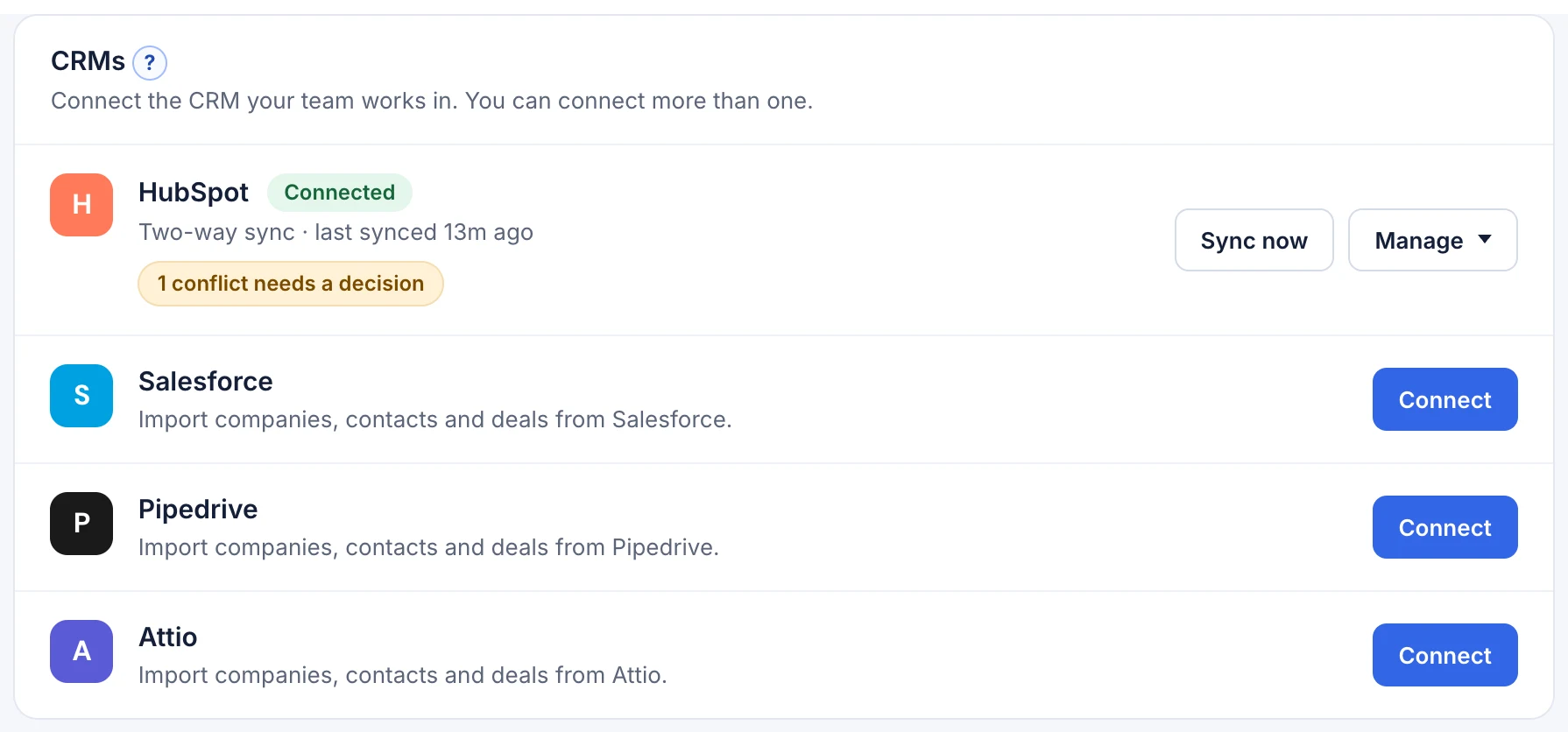
It’s under Connections in the Settings sidebar. The CRMs section has a card for each CRM.
-
Click Connect on your CRM’s card
A window lists what Recordbook will do. Click Connect HubSpot (or your CRM’s name). A pop-up opens your CRM’s sign-in.
-
Approve access in your CRM
Sign in and approve. The pop-up closes and the card says Connected.
-
Bring your data in
Connecting doesn’t import anything on its own. Choose one:
- Review and import lists every company, contact and deal, marked New or Existing. Tick what you want and click Import N items.
- Sync now brings in everything.
Watch a sync
Sync now shows each stage: Queued, Syncing, then the result. Manage › Last sync breaks it down for companies, contacts, deals and notes: created, updated, sent, skipped and failed.
- Show N items that didn’t sync lists each one with the reason in plain words.
- Recent syncs at the bottom of the page shows the latest runs, from and to each CRM.
- A sync that hasn’t started after 15 minutes, or stopped part way, is marked failed with a reason. Run it again to pick up the rest.
Turn on two-way sync
-
Flip the Two-way sync switch
It’s on the CRM’s card. Only admins can change it.
-
Know what goes back
On deals linked to the CRM: stage, close date and amount (Attio: stage and amount). Plus new notes written on linked companies after you turn it on. Older notes stay where they are, and archiving a note never deletes it in the CRM.
-
Let it run
Changes go to the CRM every few minutes, and Recordbook pulls from the CRM every hour. Send now pushes straight away.
Settle a conflict
If a field changed in both Recordbook and the CRM since they last matched, neither side is overwritten. The deal gets a badge such as HubSpot conflict, and the card shows how many need a decision.
-
Open the conflicts
Click the badge on the deal, or N conflicts need a decision on the card. Sync conflicts with HubSpot lists each field with In RecordBook and In HubSpot values.
-
Pick one
Click Keep RecordBook’s or Keep HubSpot’s. The other side is updated to match.
HubSpot: map your stages
HubSpot pipelines have their own stages. With two-way sync on, an admin can match them to Recordbook’s:
-
Turn on Stage mapping
On the HubSpot card, then pick a Pipeline.
-
Pick a HubSpot stage for each Recordbook stage
Stage 1 to Stage 5, Closed – Won, Closed – Lost, Pending and Unqualified. Fill by stage order does a first pass for you. Click Save mapping.
A map works both ways. Deals in a pipeline without a map keep their HubSpot stage.
Tips and gotchas
- Free plan. Imports stop at the 25 active records, and the items left out say so. Archive old records or upgrade, then sync again.
- Attio. Turn on Deals in Attio (Settings › Objects › Deals › Activate) or deals won’t come across. Attio doesn’t let apps edit notes, so note edits stay in Recordbook.
- Needs attention? An expired or revoked connection shows Needs attention with a Reconnect button.
- Disconnect from Manage › Disconnect. Records already imported stay.
Ask your AI
“Is my CRM sync healthy? Any errors or conflicts?”
“Sync HubSpot now.”