 RecordbookHQ
how-to guide
RecordbookAI: Today’s Brief, Updates by Sentence and the Leaderboard
Ask about your pipeline in plain words, start the day with a brief, update a deal by typing what happened, and rank your reps.
- Where
- Dashboard › Search › AI Pipeline Manager
- Who
- Everyone on your team
- Time
- 2 minutes
- Plan
- Every plan
RecordbookAI is the assistant built into the app. Ask it about your pipeline in plain words, start the day with a short brief of what needs doing, rank your reps, or type what happened on a deal and let it fill in the record. It works from your own data, and it never saves a change you haven’t confirmed.
It’s separate from connecting Claude, ChatGPT or Gemini. Those run in your own AI app; this one runs inside Recordbook. They answer the same kinds of questions.
Open the panel
-
Open search on your dashboard
Click the search icon in the header (its tooltip says Toggle Search). The search box reads Search Recordbook….
-
Choose AI Pipeline Manager
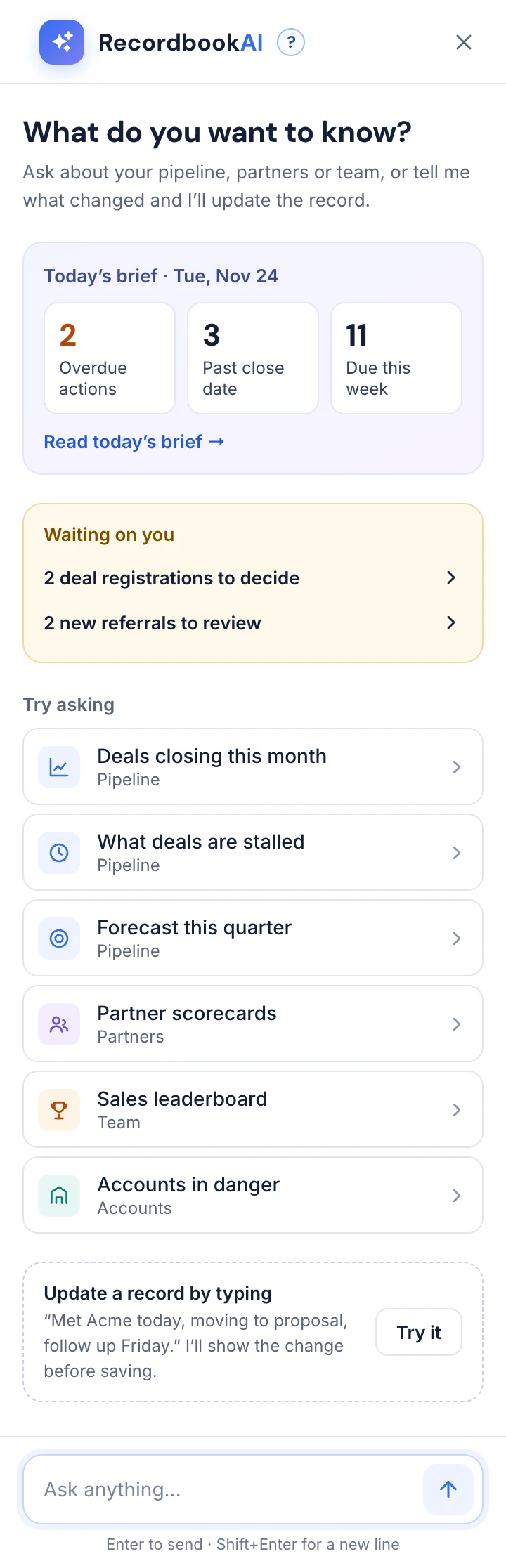
It’s the button next to the search box. The RecordbookAI panel opens on the side, with What do you want to know? at the top.
-
Ask, or pick a suggestion
Type in Ask anything… and press Enter (Shift + Enter adds a new line). Or click one of the six Try asking rows: deals closing this month, stalled deals, this quarter’s forecast, partner scorecards, the sales leaderboard and accounts in danger.
Start the day with today’s brief
The Today’s brief card shows three live counts: overdue actions, deals past their close date, and what’s due this week. Click Read today’s brief → (or ask “What needs attention today?”) for the full list, which also includes deals that have gone quiet for 14 days or more.
- The brief covers the whole workspace. Say “my” to narrow it to you: “What’s on my plate today?”
- Action cards in the answer have Mark done, Snooze 1 week and Open record, so you can clear the list without leaving the panel.
- Late actions say how late they are (“12 days late”), so the oldest stand out.
Update a deal by typing a sentence
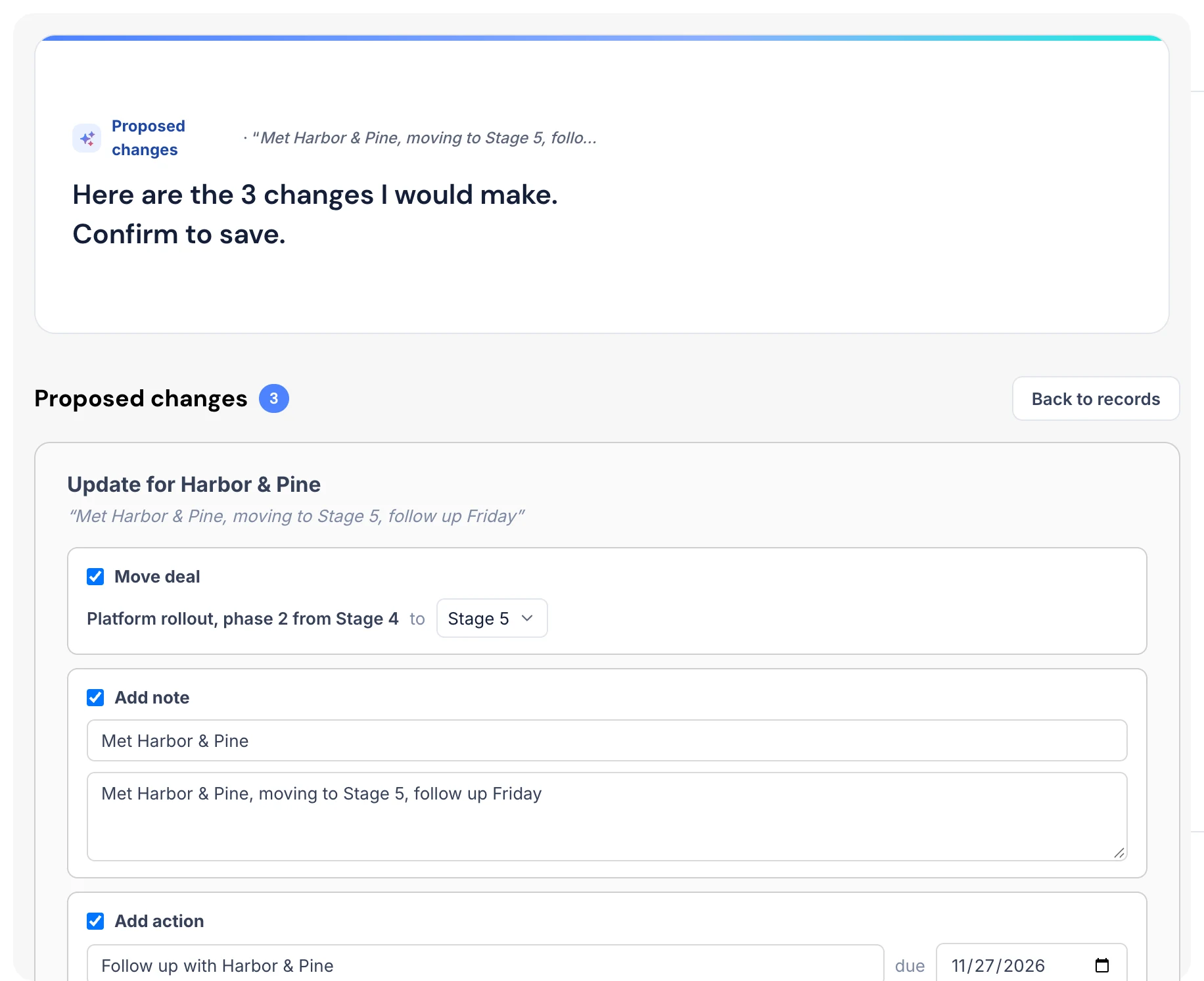
Instead of opening the record and filling in fields, tell RecordbookAI what happened. It works out the stage change, the note and the follow-up, then shows them to you before anything is saved.
-
Type what happened
For example: “Met Acme today, moving to proposal, follow up Friday.” Name the account, and say the stage and the follow-up in your own words. Try it on the opening screen fills in that example for you.
-
Check the card
An Update for Acme card lists each change with a tick box:
- Move deal: the deal and its new stage. It also tells you if the close date will change.
- Add note: a title and the text, which you can edit.
- Add action: the follow-up and its due date.
Untick anything you don’t want, or change it. If more than one account matches, pick the right one under Which account?.
-
Click Confirm
Nothing is saved until you do. The card then says Saved. and lists what changed, such as Moved Acme Platform to Stage 3. Each change shows in the record’s activity feed.
See who’s winning on the leaderboard
Ask “Sales leaderboard” (it’s one of the suggestions). The answer opens as a table in the main area, ranked by closed-won revenue for the current period, with each rep’s deals won, open pipeline and the change since the last period.
- Change the ranking with Closed won, Deals won or Open pipeline.
- Change the period: This month, This quarter, This year or the previous one of each. Each change is asked again, so the chat keeps a record of what you looked at.
- Reps with nothing yet are listed separately, never ranked at $0. The deals behind the numbers sit under Biggest wins.
- Early in a period, when nothing has closed, it shows who is closest to a win instead, with buttons for the last period and for deals closing this month.
Get better answers
- Check “Read as”. Each reply shows how your question was understood (the period, the account, the filter). If it’s wrong, rephrase or pick one of the chips under it.
- Use the follow-up chips. Up to three suggestions follow each answer, such as Brief me on Acme or Compare this quarter to last quarter.
- Brief me on… Deal, contact and account cards have a Brief me on … button: a one-screen summary of the account before a call.
- Start over with New chat in the panel header.
Ask your AI
Connected Claude, ChatGPT or Gemini? The same questions work there, in your own words, and your assistant can act on the answers.
“What needs my attention in Recordbook today?”
“Met Acme today, moving to proposal, follow up Friday.”
“Who’s leading the team in closed-won revenue this quarter, and who’s closest behind?”
Your assistant shows each change and asks before saving it, just like the confirm card.